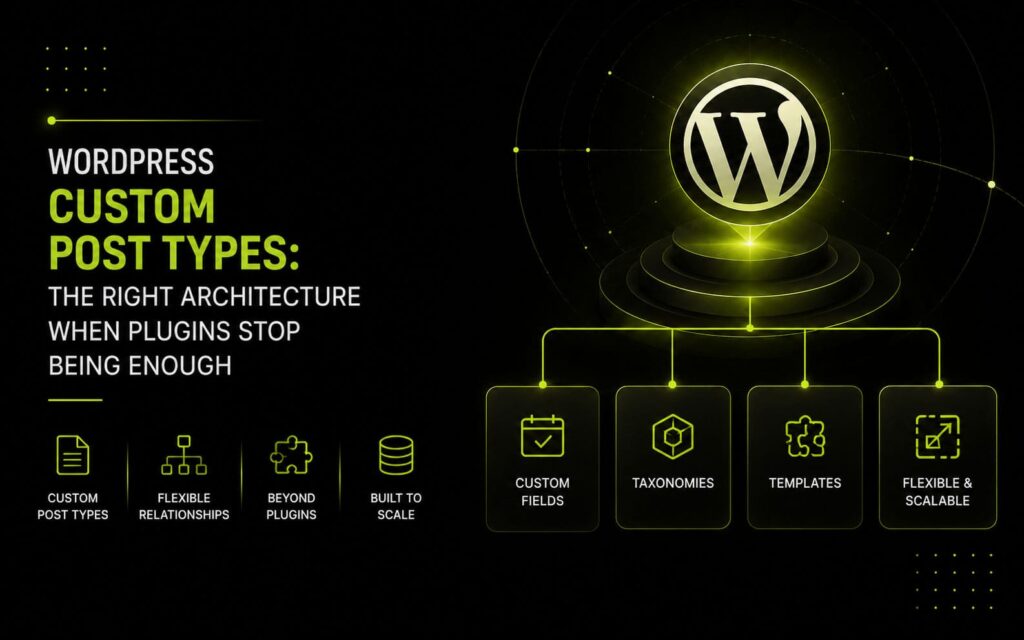
Custom post types in WordPress are one of the platform’s most powerful and most abused features. Every WordPress CPT tutorial shows you the register_post_type() call and moves on. What it doesn’t show you is how to structure CPTs so they scale — so a client can manage 400 portfolio entries without the admin grinding to a halt, so your field data doesn’t become an unmaintainable mess of meta keys, and so another developer can pick up the project two years later without reverse-engineering your intentions. This is what I’ve learned from building CPT-heavy sites across a decade of client work.
When Plugins Stop Being Enough
There are three scenarios where I stop reaching for a plugin and start writing custom CPT architecture:
- The content type has relationships — a ‘Project’ that belongs to a ‘Client’, which has its own data, which relates to a ‘Team Member’. Plugin-based CPTs handle flat data well; relational data poorly.
- The admin experience matters. Plugin-generated post lists show the wrong columns, in the wrong order, with no useful filters. Clients give up on managing their own content.
- The frontend query is complex. If you’re filtering by multiple taxonomies, ordering by a custom meta value, and paginating — a standard plugin’s output won’t get you there cleanly without a rewrite anyway.
In all three cases, spending 4-6 hours on a proper custom CPT setup saves weeks of fighting plugin limitations later.
The Architecture I Use
1. One Class Per Post Type
Each CPT lives in its own PHP class inside an includes/post-types/ directory. The class handles registration, admin column customization, and meta box registration. Nothing else. This means when a client asks to add a new field to ‘Portfolio Projects,’ I open one file, not five.
The class structure:
- __construct(): hooks into init for registration, admin hooks for columns and sorting
- register(): the register_post_type() call with full labels and capability mapping
- register_meta(): registers all post meta with register_post_meta() — typed, sanitized, schema-defined
- admin_columns() / admin_column_data(): what shows in the list view and how it’s sorted
- meta_box(): the edit screen fields, kept minimal and client-facing
2. register_post_meta() Over Direct Database Calls
Most WordPress tutorials write meta box callbacks that call get_post_meta() and update_post_meta() directly. This works but leaves your meta completely undocumented — no type enforcement, no REST API exposure, no schema. I register every field with register_post_meta() instead:
This makes the field typed (WordPress will cast it), exposes it in the REST API automatically if you need Gutenberg or headless access, and documents what fields exist. When I come back to a project after six months, I know exactly what’s stored and what type it should be.
3. Custom Fields: Fieldify Over ACF for New Builds
For repeater fields and complex field groups, I’ve built and use Fieldify — a lightweight ACF alternative with the ffy_ prefix that stores data in ACF-compatible format. The advantage: no plugin dependency for clients on tighter budgets, and I control the data structure. For clients who already have ACF Pro, I use ACF. The point is that field data should be stored predictably and documented, regardless of which tool registers it.
The Interesting Technical Part: Admin Column Performance
One CPT project involved a ‘Speakers’ post type for an event site — about 800 speaker records, each with a country, session type, and speaking date stored as post meta. The client wanted to filter by country and sort by date in the admin list view.
The default WordPress approach — using orderby=meta_value and meta_key in a WP_Query — works for small datasets. At 800 records with three meta joins, the admin list was loading in 4-6 seconds. Not acceptable.
The fix: a custom database table for the speaker index, updated via save_post hook. Instead of querying wp_postmeta three times on every list page load, the admin query hits a single indexed table with country, date, and post_id columns. Query time dropped to under 200ms.
This is the decision point most developers avoid because it breaks the ‘pure WordPress’ abstraction. But it’s the right call when you have a large dataset with complex sort/filter requirements. WordPress’s post meta storage (EAV model) is flexible but not designed for performant relational queries.
Making the Admin Experience Client-Friendly
Technical correctness doesn’t matter if the client can’t use the admin. A few things I always do:
- Custom admin columns showing the 3-4 most important fields — clients shouldn’t have to open every post to see its status
- Sortable columns on date fields and status fields — the two things clients always want to sort by
- A custom Quick Edit panel that exposes the 1-2 fields they change most often (status, featured flag) without opening the full edit screen
- Descriptive placeholder text in every field — not ‘Enter title here’ but ‘Speaker name as it should appear on the event page’
These details take a few extra hours but reduce support requests dramatically. A client who can self-manage their content is a better long-term relationship than one who emails every time they need to update a photo.
Taxonomy vs Meta: A Decision Framework
The most common architectural mistake in CPT work: storing everything as post meta when some data should be taxonomies, and vice versa.
Use a custom taxonomy when: the value is used for filtering/querying, it’s shared across multiple posts (same ‘Industry’ tag on 50 posts), or it needs its own archive page. Use post meta when: the value is unique to that post (a specific date, a price, an external ID), or it’s not used as a query parameter.
Mixing these up causes either sluggish queries (filtering by meta when you should be filtering by taxonomy) or an unmanageable taxonomy list (creating a new ‘date’ term for every single post).